

How To Make Tax Payment On The Income Tax Portal

Updated: Jul 30

For most salaried taxpayers, income tax is deducted directly from their salary through Tax Deducted at Source (TDS). However, taxpayers who are self-employed or earn income from other sources, such as rent, investments, or freelance work, may need to pay additional tax if the TDS deducted is not enough.
Filing an Income Tax Return (ITR) helps taxpayers check whether they have any tax payment dues left to pay or are eligible for a refund. If there is tax payable, it can be paid online through the e-Pay Tax service on the Income Tax Portal. Paying the correct amount of tax and ensuring that the payment is properly reflected in tax records is important for accurate return filing and avoiding the levy of interest on unpaid taxes.
Taxpayers can make payments such as self-assessment tax and advance tax using net banking, debit cards, UPI, or by generating a challan. Once the payment is made, taxpayers should check Form 26AS to ensure the details have been updated and reported correctly while filing their ITR.
Table of Contents
What is the e-Pay Tax Facility?
The service allows taxpayers to pay direct taxes online without visiting a bank. It can be used to pay advance tax, self-assessment tax, demand payments, and other applicable direct taxes. The entire payment process can be completed online through the Income Tax Department's e-Pay Tax facility.
Taxpayers can use the service to:
Generate a tax challan online
Pay taxes through multiple payment methods
View challan and payment details
View payment history
The service is available on the Income Tax Portal and can be accessed in two ways:
Access Mode | Description |
Pre-login | Pay tax using a PAN/TAN and mobile number without logging in to the portal |
Post-login | Pay tax after signing in to the Income Tax Portal account |
How Does the e-Pay Tax Service Work?
To start this process, taxpayers need to select the relevant tax type and Assessment Year e-Pay Tax page. After that, the portal will generate a Challan Reference Number (CRN), which is used to complete the payment.
After generating the CRN, taxpayers can pay the tax amount using one of the available payment methods, such as net banking, debit card, UPI, bank challan, etc. After successfully going through the process, taxpayers can check the transaction status and view their payment history on the portal.
The payment process will be the same for taxes paid under the Income-tax Act, 1961 and the Income-tax Act, 2025.
Benefits of e-Tax Payment
Paying taxes online through the Income Tax Portal offers several advantages for taxpayers. Some of the key benefits include:
Pay taxes anytime without visiting a bank or standing in long queues
Receive an instant payment receipt after completing the transaction
Track and verify the payment status online
Access tax payment history in the portal, as tax payment details are automatically updated in the Income Tax Department's records
Use any one of the multiple payment methods available based on convenience
Eligibility for e-Tax Payment
E-payment of taxes is generally required for the following categories of taxpayers:
Companies and corporate taxpayers
Taxpayers (other than companies) who are required to get their accounts audited under Section 44AB of the Income Tax Act, 1961
Other taxpayers can also use the e-Pay Tax service voluntarily for a faster and more convenient online income tax payment process.
Step-by-Step Process of Tax Payment Using Different Modes
Taxpayers choose the method that works best for them. Take a look at the table below:
Payment Method | Description |
Net Banking | Use an authorised bank's net banking service to complete the payment. |
Debit Card | Pay using a debit or ATM card issued by an authorised bank. |
RTGS/NEFT | Transfer funds from any bank account using the mandate form generated on the portal. |
Pay at Bank Counter (OTC) | Make the payment through cash, cheque, or demand draft at a designated bank branch. |
Payment Gateway | Use the payment gateway integrated with the Income Tax Portal to complete the payment through the available online payment options |
Before making a tax payment through the e-Pay Tax service, taxpayers need to generate a challan on the Income Tax Portal. Each challan comes with a unique CRN, which taxpayers can use to track the payment and complete the transaction.
The service is available to all taxpayers, including tax deductors and collectors. It can be generated either by logging in to the portal or through the pre-login option. The steps for generating the challan and completing the tax payment through the e-Pay Tax service are as follows:
Steps to Generate a Challan (CRN) After Logging In
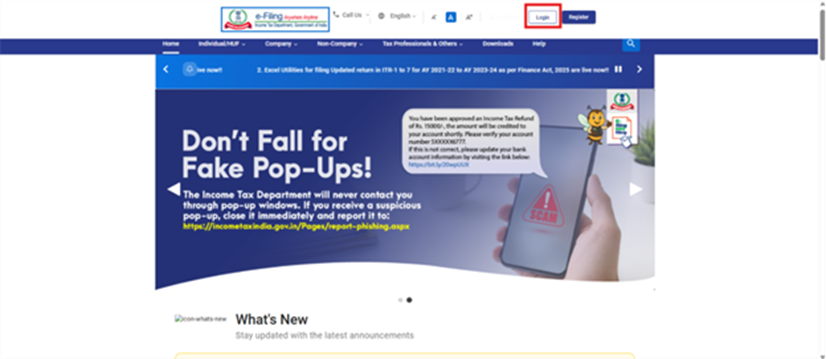
Log in to the Income Tax Portal using your User ID and password.
From the dashboard, go to e-File > e-Pay Tax.
On the Act Selection screen, choose the applicable Act and click Continue. This will be Income-Tax Act 1961 if you are paying taxes for AY 2026-27.

4. On the e-Pay Tax page, click New Payment to start the tax payment process.

5. On the New Payment page, choose the tax payment category that matches your requirement and click Proceed. If needed, refer to the Income Tax Department’s challan creation guide for PAN or TAN users to identify the correct category.
6. Choose the relevant Assessment Year/Tax Year, Minor Head, and any other required details. Then click Continue.

7. Enter the tax amount under the applicable tax heads and click Continue.
8. After you review and confirm the details, the portal generates a CRN and displays the available payment methods.
9. Select a payment mode and proceed with the payment.
Steps to Generate a Challan (CRN) Without Logging In
Taxpayers can also generate a CRN without logging in to the Income Tax Portal by using the pre-login e-Pay Tax service. Here’s how:
Visit the Income Tax Portal and click on e-Pay Tax on the homepage

On the e-Pay Tax page, enter the required details, such as your PAN or TAN and mobile number, and click Continue

Enter the 6-digit OTP sent to the registered mobile number and click Continue

After successful verification, the portal will display your PAN/TAN and a masked version of your name; review the details and click Continue

Choose the tax payment category that applies to you and click Proceed. If required, select the applicable Act:
Income Tax Act, 1961, for Assessment Year 2026-27 and earlier years
Income Tax Act, 2025 for Tax Year 2026-27 onwards
The portal will generate a Challan Reference Number. You can then select a payment mode and complete the transaction
Through Net Banking
Net Banking is one of the most commonly used methods for paying taxes online. This option is available through authorised banks integrated with the Income Tax Portal.
Select Net Banking
After generating the CRN, choose Net Banking as the payment mode. Select the bank from the available list and click Continue.
Review Payment Details
The portal will display a summary of:
Tax payment category
Assessment Year
Tax break-up
Total payable amount
After carefully reviewing the details, proceed by clicking on the ‘Pay Now’ button.
Accept Terms and Conditions
Read the terms and conditions displayed on the screen, select the checkbox, and proceed.
Complete Payment Through the Bank Portal
The portal will redirect taxpayers to the selected bank's net banking page. Log in using net banking credentials and complete the payment process according to the bank's instructions.
Download the Challan Receipt
After successful payment:
A confirmation message will appear
Payment confirmation will be reflected on the portal, and a confirmation message may also be sent through email or SMS
The challan receipt can be downloaded from the confirmation page and is generally available in the Payment History section for future reference
With a Debit Card
Taxpayers whose banks support tax payments through debit cards may use this option to make direct tax payments online. Here are the steps:
Choose Debit Card as the Payment Mode
On the ‘New Payment’ page, choose Debit Card as your payment mode. Select the issuing bank from the list and click ‘Continue’.
Verify Payment Information
Review the payment details, including:
Assessment Year
Tax type
Tax amount
After verifying the details, click ‘Pay Now’.
Accept the Terms and Conditions
Read and accept the terms and conditions. Click ‘Submit to Bank’.
Enter Debit Card Details
The system will redirect taxpayers to the bank's payment page.
Provide:
Debit card number
Expiry date
CVV
OTP received on the registered mobile number
Complete the payment process.
Save the Challan Receipt
Once the payment is successful:
A confirmation message will appear
Payment details may also be sent through email or SMS, depending on the registered contact information
The challan receipt can be downloaded and saved for future reference
At the Bank Counter
Taxpayers can use the ‘Pay at Bank Counter’ option to make tax payments offline through an authorised bank branch. This payment mode is available through both the pre-login and post-login e-Pay Tax service on the Income Tax Portal.
This option allows taxpayers to generate a challan online and make the tax payment at an authorised bank branch using cash, cheque, or demand draft.
Choose Pay at Bank Counter
On the ‘Select Payment Mode’ page, select ‘Pay at Bank Counter’. Next, choose your preferred payment method:
Cash
Cheque
Demand Draft
Select the bank where you want to make the payment and click ‘Continue’.
Verify the Payment Details
Check the taxpayer details and tax break-up displayed on the ‘Preview and Download Challan Form’ page, and then select ‘Continue’.
Download and Print the Challan
The portal will generate the Challan Reference Number and the Challan form. Download and print the challan before visiting the bank branch.
Visit the Bank Branch and Make the Payment
Take the printed challan to any branch of the selected authorised bank. Submit the signed challan along with the applicable payment instrument to complete the payment.
Save the Challan Receipt
After the bank processes the payment successfully:
You will receive confirmation through email and SMS.
The challan receipt will be available under the Payment History section of the e-Pay Tax page.
You can download and save the receipt for future reference.
Through RTGS/NEFT
Taxpayers can use the RTGS/NEFT option to pay taxes through any bank that offers RTGS or NEFT services. Here’s how to proceed:
Select RTGS/NEFT as the Payment Mode
On the Select Payment Mode page, choose RTGS/NEFT and click Continue.
Verify the Payment Details
Review the tax payment details, including the tax type, Assessment Year, and tax amount.
If all the information is correct, click ‘Continue’.
Download the Mandate Form
The portal will generate a Mandate Form containing the CRN and beneficiary account details required for the transfer. Download and save the mandate form for future reference.
Make the Payment Through RTGS/NEFT
You can complete the payment in either of the following ways:
Visit a bank branch that offers RTGS/NEFT services and submit the mandate form
Use your bank's net banking facility to transfer the tax amount
If you choose net banking, add the beneficiary/payee using the details provided in the mandate form and transfer the applicable tax amount.
Check the Payment Status
After the payment is successfully credited and verified, you will receive a confirmation through email and SMS.
Through a Payment Gateway
The Payment Gateway option lets taxpayers pay taxes online using UPI, credit cards, debit cards, or net banking. Once you select a payment gateway, you will be redirected to its website to complete the payment. Additional transaction charges may apply.
Select Payment Gateway as the Payment Method
On the 'Select Payment Mode' page, choose the 'Payment Gateway Including UPI and Credit Card' option and click 'Continue'.
Review the Payment Details
Check the tax payment details and click 'Pay Now' to proceed.
Continue to the Payment Gateway
Accept the terms and conditions and click 'Submit to Bank'.
The portal will redirect you to the payment gateway page, where you can choose your preferred payment method, such as:
UPI
Credit Card
Debit Card
Net Banking
You can also compare the applicable transaction charges before selecting a payment gateway.
Complete the Payment
Enter the required payment details and follow the on-screen instructions to complete the transaction.
Download the Challan Receipt
Once the payment is successful, you can view and download the challan receipt from the 'Payment History' section of the e-Pay Tax page.
Conclusion
The e-Pay Tax service makes it easy to pay taxes online through the Income Tax Portal. Do remember to download and save the challan for future reference. This is especially useful in case your payment fails but the amount is debited. In this case, your money will be auto-reversed but having the challan helps in claiming it back. Before starting the payment, check any maintenance windows of your bank to avoid failed transactions.
Frequently Asked Questions
1. What changed in the new e-Pay Tax service?
The new e-Pay Tax service allows taxpayers to generate a challan, pay taxes, and view payment history directly on the Income Tax Portal. It also offers more payment options, including UPI, debit cards, payment gateways, and RTGS/NEFT, making tax payments more convenient.
2. How can taxpayers pay taxes through non-authorised banks?
Taxpayers can make tax payments through non-authorised banks using the RTGS/NEFT or Payment Gateway options available on the e-Pay Tax service of the Income Tax Portal.
3. Is it necessary to generate a Challan (CRN) for tax payment?
Yes. Under the e-Pay Tax service, a Challan Reference Number (CRN) is generated before each tax payment. The CRN is used to process, track, and verify the tax payment on the Income Tax Portal.
4. How can a taxpayer check if their tax payment was successful?
Once the payment is successful, the portal generates a challan receipt and updates the CRN status to "Paid" under 'Payment History'. Taxpayers can also download the challan receipt from the same section.
5. What is included in the total tax payable during a year?
Your total tax payable includes the income tax due, surcharge, and cess (if applicable) after adjusting any eligible rebates. It may also include interest and late fees if you file your tax return after the due date.
6. What should be done if the wrong assessment year is selected while paying tax?
If a taxpayer selects the wrong Assessment Year, the error should be corrected through the prescribed challan correction process. Depending on the circumstances, the taxpayer may need to submit a correction request to the bank or the Income Tax Department. If a notice is issued, the taxpayer can explain the error and seek rectification under the applicable provisions.
7. Can tax payments be made without logging in to the Income Tax Portal?
Yes. The e-Pay Tax service offers a pre-login facility that allows taxpayers to pay taxes using their PAN or TAN and a registered mobile number. This option is useful for users who do not wish to sign in to their Income Tax Portal account before making a payment.
8. Which payment methods are available under the e-Pay Tax service?
Taxpayers can pay taxes using net banking, debit cards, UPI, payment gateways, RTGS, and NEFT, subject to the options available through the selected bank or payment provider.
9. How long does it take for a tax payment to appear in Form 26AS?
Tax payments are generally reflected in Form 26AS after they have been processed by the banking system and the Income Tax Department, which normally takes 1 to 4 days. However, this also depends on the profile of the taxpayer as corporate accounts or taxes paid against error or delay cases may take longer to reflect. Taxpayers should verify the payment status and challan details before filing their return.
10. Can a taxpayer download proof of tax payment after completing the transaction?
Yes. After a successful payment, the Income Tax Portal generates a challan receipt containing the payment details. Taxpayers can download and retain this receipt as proof of payment for future reference and return filing purposes.


